Your finances are safe and secure with First State Bank.
Read More


Convenience Services
Simple. Convenient. Fast. Bank on-the-go and from wherever you are with the convenient online and mobile banking tools from First State Bank.
Debit Card
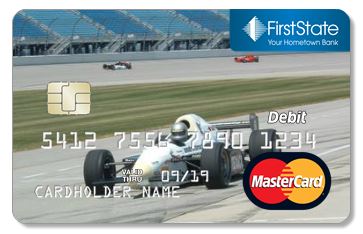
Accessing your accounts and making payments with your First State Bank Debit Card is about to get faster and more secure. When your current debit card expires, it will be replaced with a new First State Bank Debit Card that features the latest chip AND contactless payment technology that includes support for contactless transactions. Every chip transaction and every contactless transaction includes a unique code helping to protect against fraud and keep your information safer.
APPLY NOW PERSONALIZE ITWorks like a credit card
Embedded chip for more security
Earn perk points
Surcharge-Free Worldwide ATMs
When life takes you on the road, we’re never far away. First State Bank has partnered with Allpoint to give you surcharge-free access to over 55,000 ATMs worldwide.
FIND AN ATMOver 43,000 ATMs nationwide
Over 12,000 international ATMs
Card Guard
Safeguard your debit card using your FSB Mobile Banking app to turn your card on or off and/or by setting limits.
VIEW A DEMODebit Card SAFEGUARD
For PEACE of mind


Online BillPay
We’re all about keeping things simple. With Online Billpay, there’s no need to stock up on stamps or make trips to the post office. Use Online or Mobile Banking to pay bills, pay people, or transfer funds. It’s easy to set up and we offer flexible scheduling options that allow you to set up one-time or recurring payments, even months in advance.
Free when you use Online Banking, enrolling in BillPay is easy and free.
VIEW A DEMOOnline and mobile access
No checks, no stamps - no problem!
Easy set up
Mobile App with Mobile Deposit
Enjoy full banking access on your smart phone or tablet with our free mobile app. Skip the trip to the branch and make your deposit from our app too.
VIEW A DEMO MANAGE ACCOUNTSECURE and CONVENIENT
Deposit checks using your MOBILE DEVICE
Mobile Banking - Text & Web Browser
You can also access the convenience of Online Banking from your mobile phone or tablet with FSB Mobile Banking1 with text banking or a mobile browser.
ENROLL USE TEXT BANKINGBank on-the-go with your mobile phone
First Alerts
Stay connected with your account activity with First Alerts. You have the ability to set up text, email and/or push notifications to send you important information so you can better manage your money.
VIEW DEMO SET UP ALERTSTECHNOLOGY that keeps you in the know
eStatements
Why wait around for your account statement to show up in your mailbox? Enroll in eStatements, and enjoy the safety and convenience of online access with up to 13 months of statement history, less clutter, and the peace of mind of decreasing your risk of identity theft.
ENROLL VIEW A DEMOReduces risk of identity theft
Faster than paper statements
Environmentally friendly
Telephone Banking
When you need up-to-date information on your account activity, give us a call. Access our automated Telephone Banking service by calling 888-775-2265, and enjoy 24/7 access to your account information.
SET UP TELEPHONE BANKINGNo smart phone needed
24/7 access to your accounts
Credit Sense
Stay on top of your credit for FREE with Credit Sense, available in Online Banking and in the Mobile Banking app. With Credit Sense, you get your latest credit score and report, and an understanding of the key factors that impact the score. Log in to Online Banking to enroll!
Credit monitoring made easy
By accessing our Online Banking sites you agree to be bound by our terms and conditions as described in the Personal Online Banking Agreement (PDF).